
Do Chromebooks Have HDMI Ports?

Chromebooks have become a popular choice for students, educators, and professionals who need an affordable, secure device for everyday tasks. But as more classrooms and offices rely on external displays, projectors, and monitors, one question comes up often: Do Chromebooks have HDMI ports?
HDMI on Chromebooks: What to Expect
Older and budget-friendly Chromebook models frequently included a full-size HDMI port built directly into the chassis. This made it simple to connect to a projector or external monitor using a standard HDMI cable.
However, as devices have become slimmer and more portable, many manufacturers have removed dedicated HDMI ports in favor of USB-C, which can handle power, data, and video all through one compact connection.
That means depending on the model, your Chromebook may have:
-
A full-size HDMI port
-
A micro-HDMI port (less common)
-
No HDMI port at all, relying on USB-C or DisplayPort support
-
A combination of USB-C, USB-A, and HDMI
Before buying accessories, it’s always smart to check your Chromebook’s specifications on the manufacturer’s website or the ChromeOS settings page under About Device.
How to Transmit Video Through USB-C
Even if your Chromebook doesn’t have a built-in HDMI port, you can still connect it to virtually any display using USB-C, as long as your Chromebook supports USB-C DisplayPort Alt Mode. Most modern Chromebooks do.
Here’s how it works:
1. USB-C Alt Mode for Video Output
USB-C ports are incredibly versatile. With DisplayPort Alt Mode, the USB-C connector can send video and audio signals directly to an external display. This means your Chromebook can output to:
-
HDMI monitors
-
DisplayPort monitors
-
TVs
-
Projectors
You simply need the correct adapter or cable.
2. Choosing the Right Adapter
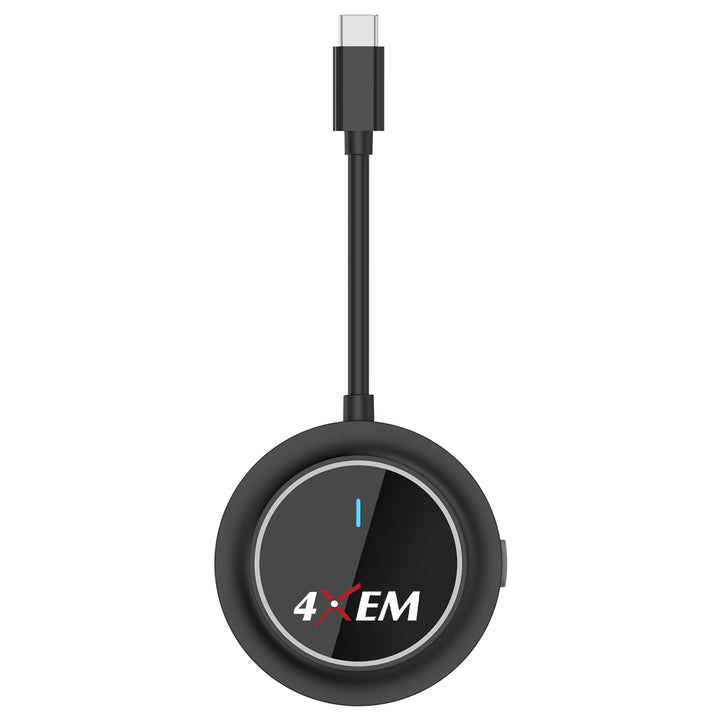
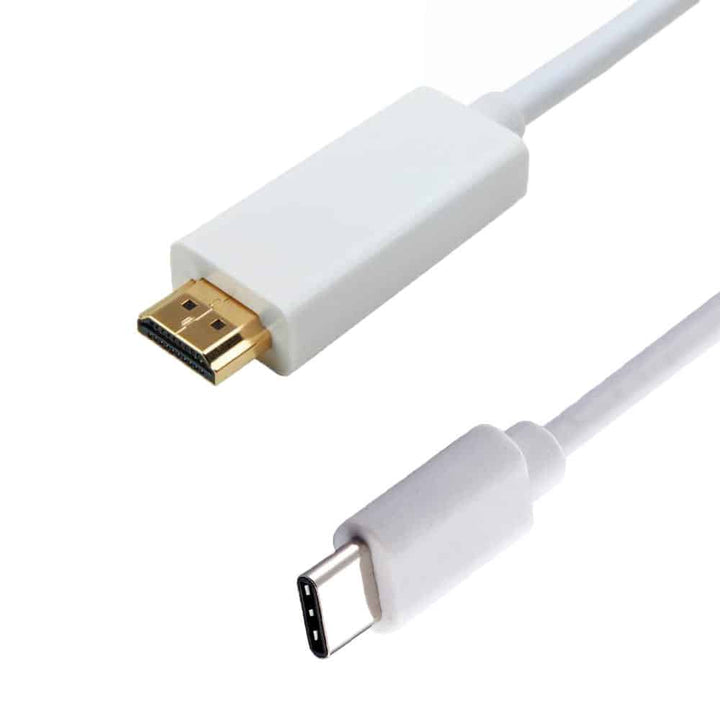
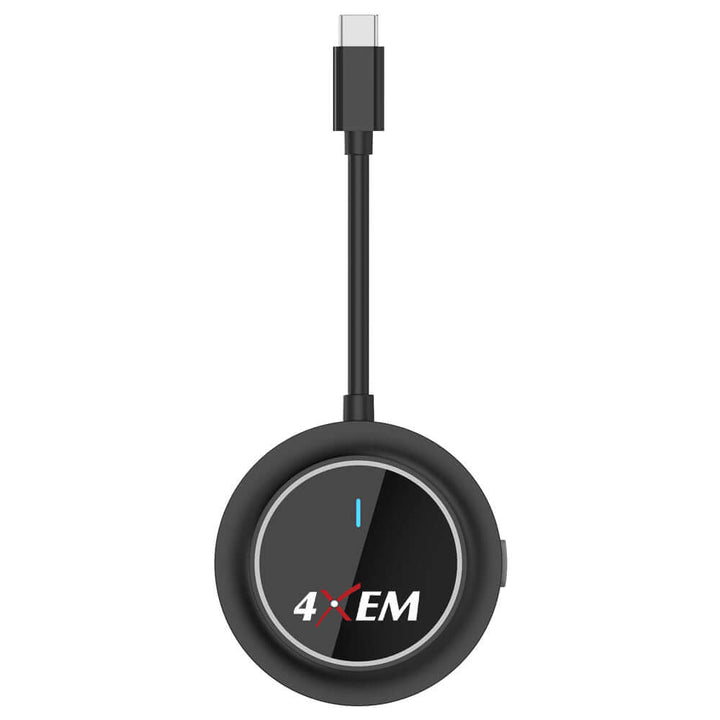
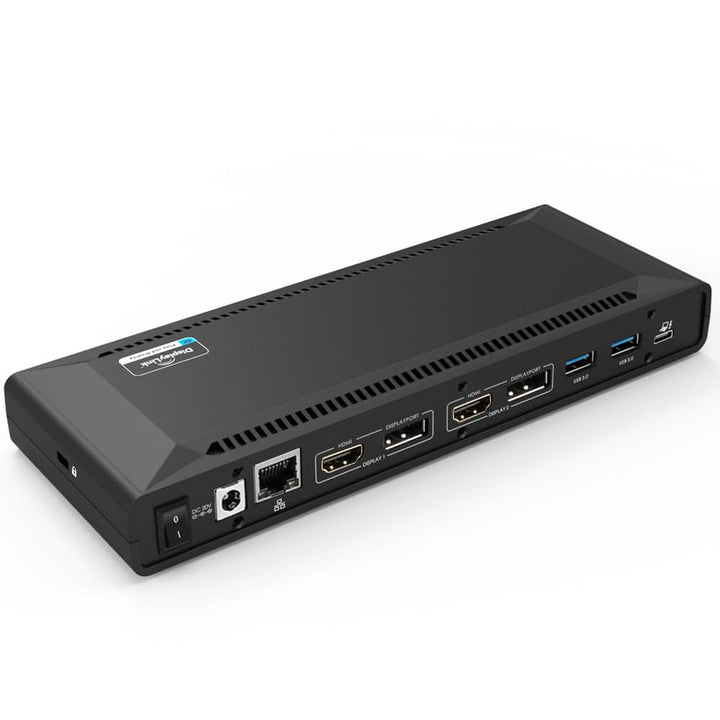
You can use a USB-C to HDMI adapter, USB-C wireless display adapter or a full USB-C docking station to expand your connectivity. These adapters convert the USB-C video signal into HDMI for any standard monitor or TV.
High-quality adapters—such as those from 4XEM—ensure stable video output up to 4K resolution and reduce issues like flickering or signal drop-off.
Featured Chromebook HDMI Solutions
3. Using a USB-C Hub for Multi-Display Setups
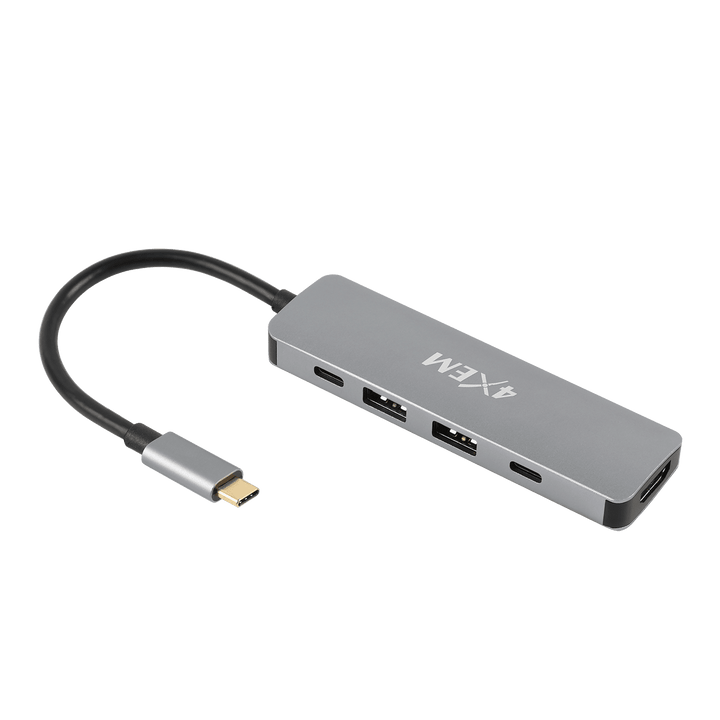
If you need more than just HDMI output, a USB-C hub or docking station adds extra ports, including:
-
HDMI
-
Ethernet
-
USB-A
-
SD card reader
-
DisplayPort
Many Chromebooks support dual-monitor output through these hubs, enhancing productivity for office or classroom setups.
4. Plug and Play Setup
In most cases, connecting your USB-C adapter to a display is instant:
-
Plug the adapter into the Chromebook’s USB-C port.
-
Connect an HDMI cable from the adapter to your display.
-
The Chromebook should automatically detect the external screen.
-
Open Settings > Displays to adjust resolution or extend your workspace.
While not all Chromebooks come with HDMI ports anymore, USB-C has made video connectivity more flexible than ever. With the right adapter, you can connect your Chromebook to any classroom projector, conference room display, or home TV with ease.
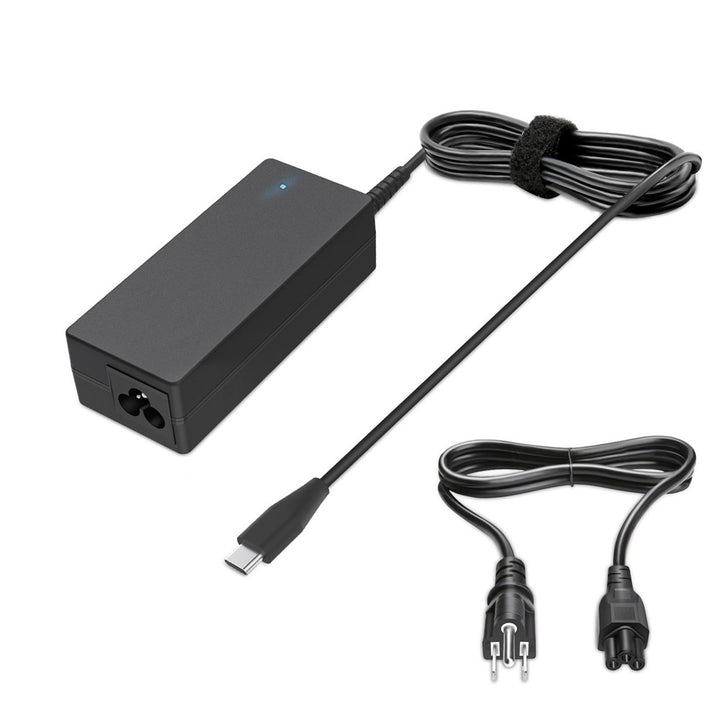
Explore 4XEM Chromebook Accessories
Chromebook HDMI & USB-C FAQ
Do all Chromebooks have an HDMI port?
No. Many older Chromebooks included a full-size HDMI port, but most newer, thinner models rely on USB-C ports for video output instead. If your Chromebook doesn’t have HDMI, you can still connect to TVs, monitors, and projectors using a USB-C to HDMI adapter or cable.
How can I connect my Chromebook to a TV or monitor without HDMI?
If your Chromebook only has USB-C, you can use a USB-C to HDMI cable such as the 4XEM USB-C to HDMI Cable (6FT). Plug the USB-C end into your Chromebook and the HDMI end into your display, then select the HDMI input on the TV or monitor.
Can I connect a Chromebook to a display wirelessly?
Yes. With a wireless HDMI solution like the 4XEM USB Type C to HDMI Wireless Display Adapter, you can mirror your Chromebook screen to a TV or projector without running a long HDMI cable across the room.
Can a single USB-C port handle video and other devices at the same time?
Yes, if you use a multi-port USB-C hub that supports video output and power delivery. A compact option is the 4XEM 5-in-1 USB-C to HDMI Adapter, which adds HDMI plus USB-A and USB-C ports while keeping your Chromebook charged.
How do I know if my Chromebook supports video over USB-C?
Most modern Chromebooks do, but to be sure, check the manufacturer’s specs for terms like “DisplayPort over USB-C,” “Alt Mode,” or “USB-C display output.” If your Chromebook supports these and you use a quality adapter or cable (like the 4XEM options above), it should work with external displays.
Trusted by


